


Do you want to share your videos without mobile app? You can post YouTube Shorts without mobile and skip the app entirely. Whether it’s a funny clip, a quick tutorial, or a viral moment, you can now upload YouTube Shorts from browser in just a few clicks.
No matter if you’re on a Windows PC or a Mac, this method makes creating and publishing content faster, easier, and more organized. By the end of this guide, you’ll confidently handle YouTube Shorts desktop upload and post your videos—all without touching your phone.
Can You Upload YouTube Shorts Without the Mobile App?
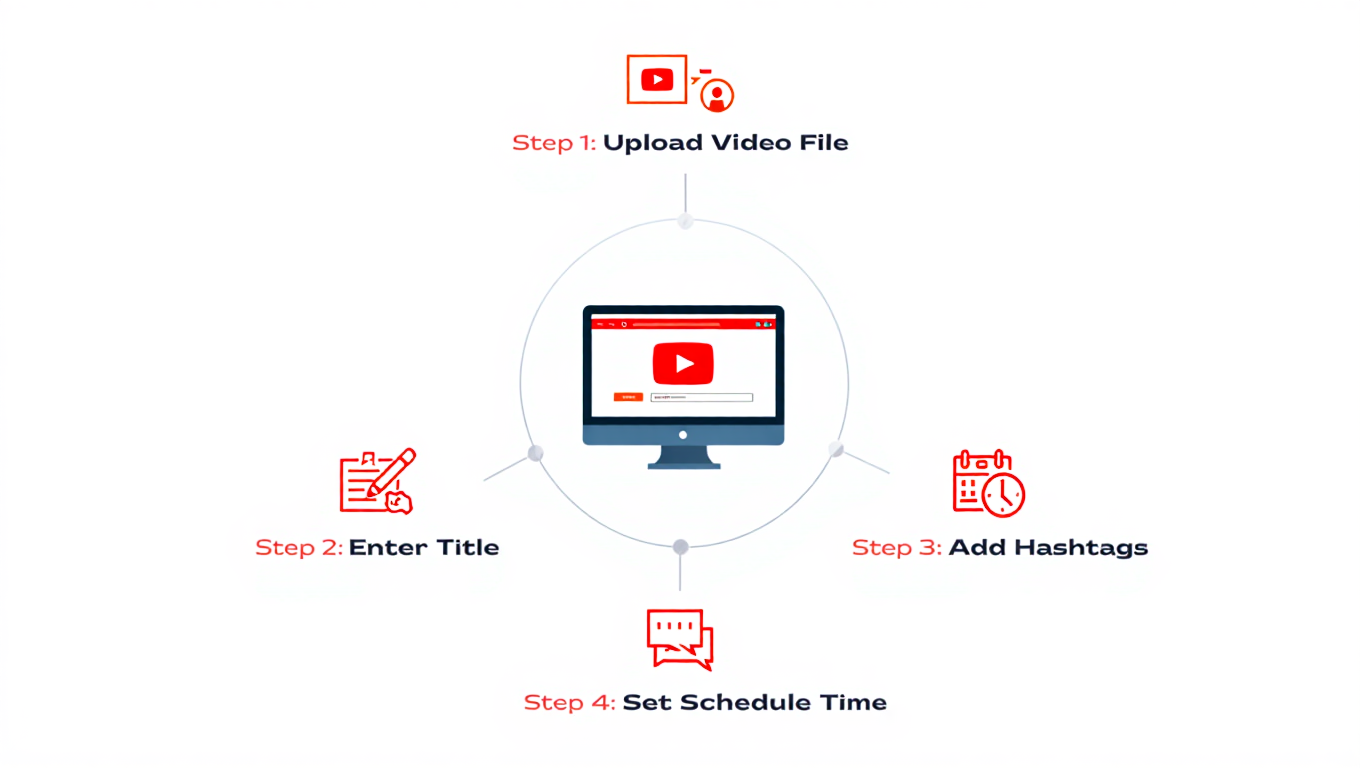
Many creators think they need a smartphone for Shorts. But YouTube Studio Shorts upload on desktop is fully functional. Using the browser, you can:
- Upload YouTube Shorts from PC
- Add titles, descriptions, and hashtags
- Schedule your Shorts for later publishing
Think of it like using a digital studio on your laptop. You get more control over uploads and avoid the hassle of switching between devices.
Tip: If you’re curious about mobile tracking while posting, check this Stop Instagram Tracking Methods for tips on privacy while uploading online content.
Requirements Before Uploading YouTube Shorts from Browser
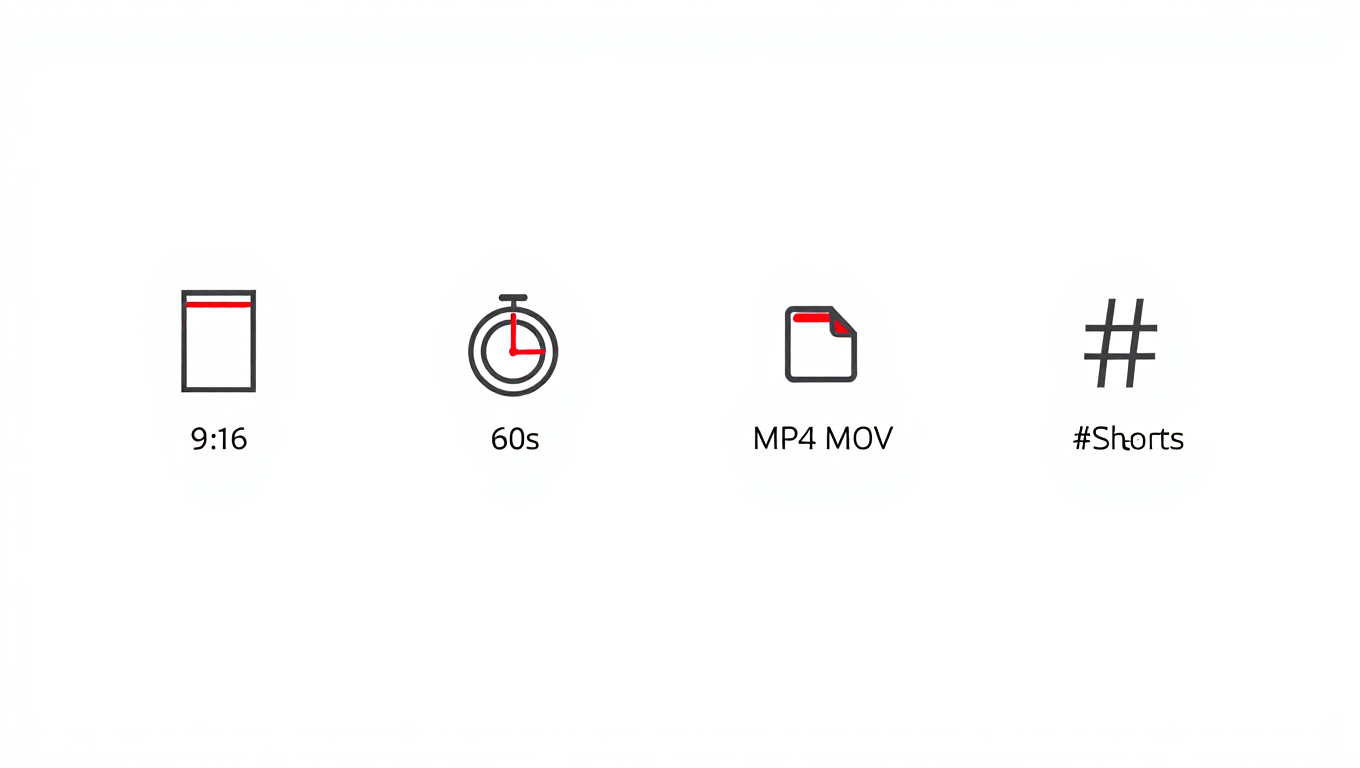
Before you start your browser YouTube Shorts upload guide, make sure your video meets these requirements:
- Vertical video format for Shorts (9:16 aspect ratio)
- Maximum length: 60 seconds
- Accepted file types: MP4, MOV
- Include hashtags like #Shorts for better discoverability
This ensures YouTube recognizes your video as a Short and displays it correctly in the Shorts feed.
Pro Tip: Always preview your video before uploading. Desktop uploads let you catch small errors before they go live.
Quick Way to Upload YouTube Shorts from Browser
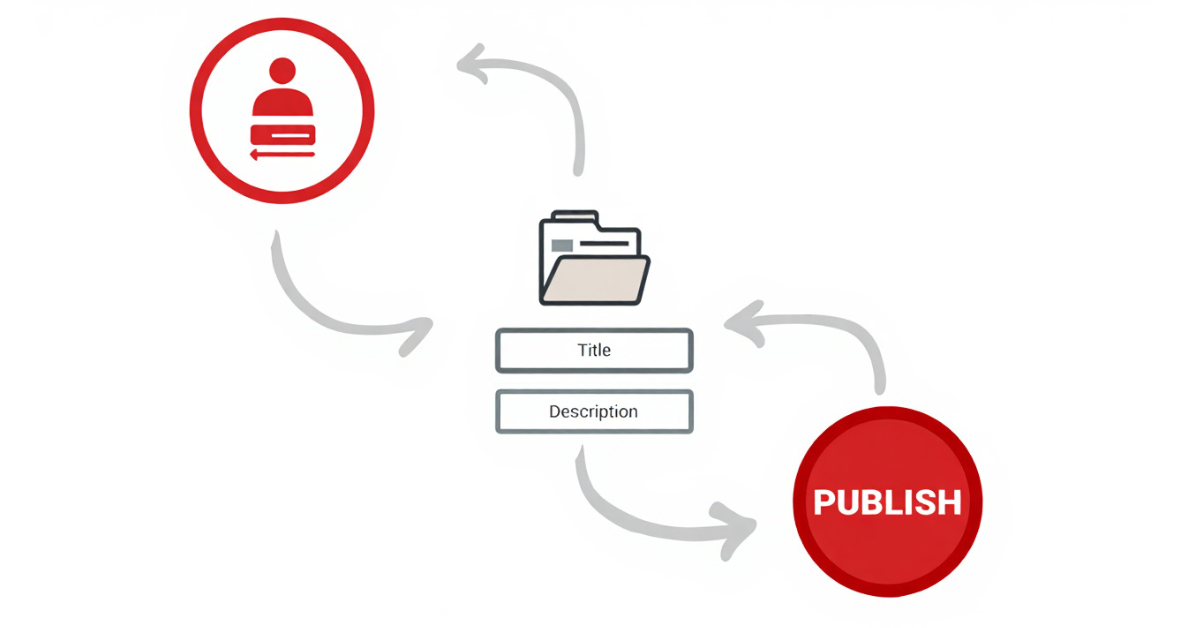
Here’s a simple step-by-step walkthrough for a seamless upload Shorts via browser (desktop) experience.
Step 1: Open YouTube Studio on Desktop
- Log in to your YouTube account.
- Access YouTube Studio Shorts upload.
- Locate the upload button on the top-right corner.
- Desktop access allows you to manage multiple channels and videos without juggling phones.
Tip: If your browser seems slow during uploads, optimize it by checking How to Fix Slow Wi-Fi: Easy Optimization Tips for quick fixes.
Step 2: Upload Your Vertical Video
Select your prepared video. YouTube automatically detects if your file qualifies as a Short.
- Ensure it’s upload vertical video as Short on browser
- Make sure the video length ≤ 60 seconds
- Add a catchy title and description
Example: A cooking Short could be titled: “3-Minute Mug Cake Recipe #Shorts”.
You’re now engaging with short-form video posting guide and vertical short-form content on YouTube.
Step 3: Add Title, Description & Visibility
Fill in the video details:
- Title with keywords
- Description (include external links or references if needed)
- Set visibility: Public, Unlisted, or Private
Pro Tip: Use desktop YouTube Shorts instructions to add subtitles or thumbnails for better engagement.
Step 4: Publish or Schedule Your Short
Finally, hit Publish or schedule your Short for later. Scheduling is especially handy if you’re managing multiple videos from your desktop.
Desktop vs Mobile App: Which Is Better for Uploading Shorts?
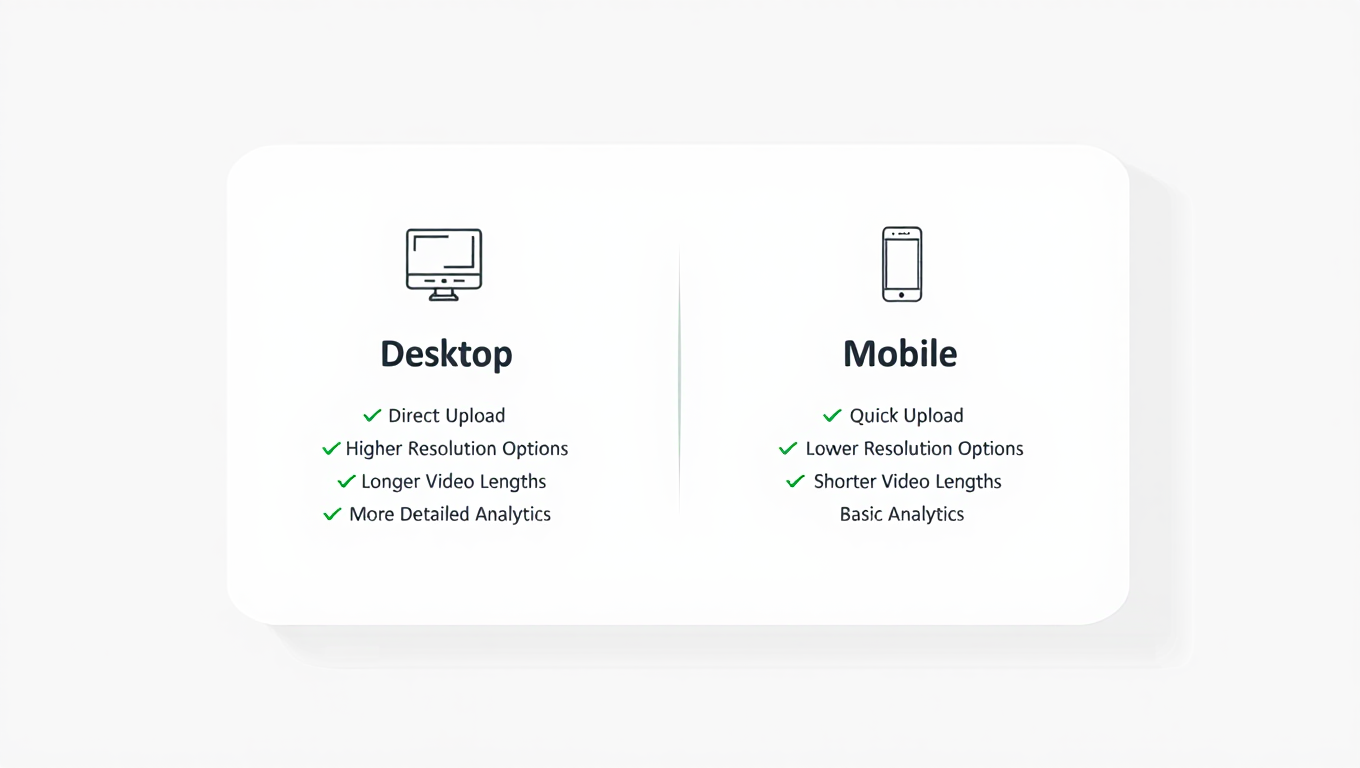
Here’s a quick comparison:
| Feature | Desktop Browser | Mobile App |
|---|---|---|
| Ease of uploading multiple | Easy | Limited |
| Editing tools | More detailed | Quick edits only |
| Scheduling videos | Yes | Limited |
| Screen size for preview | Full preview | Small screen |
If you want a more organized workflow, the desktop vs app YouTube Shorts upload method is unbeatable. You can also upload multiple Shorts at once from browser with better control.
For better PC workflow, see Free Browser Addons for Social Media Safety.
Problems When Uploading YouTube Shorts from Browser
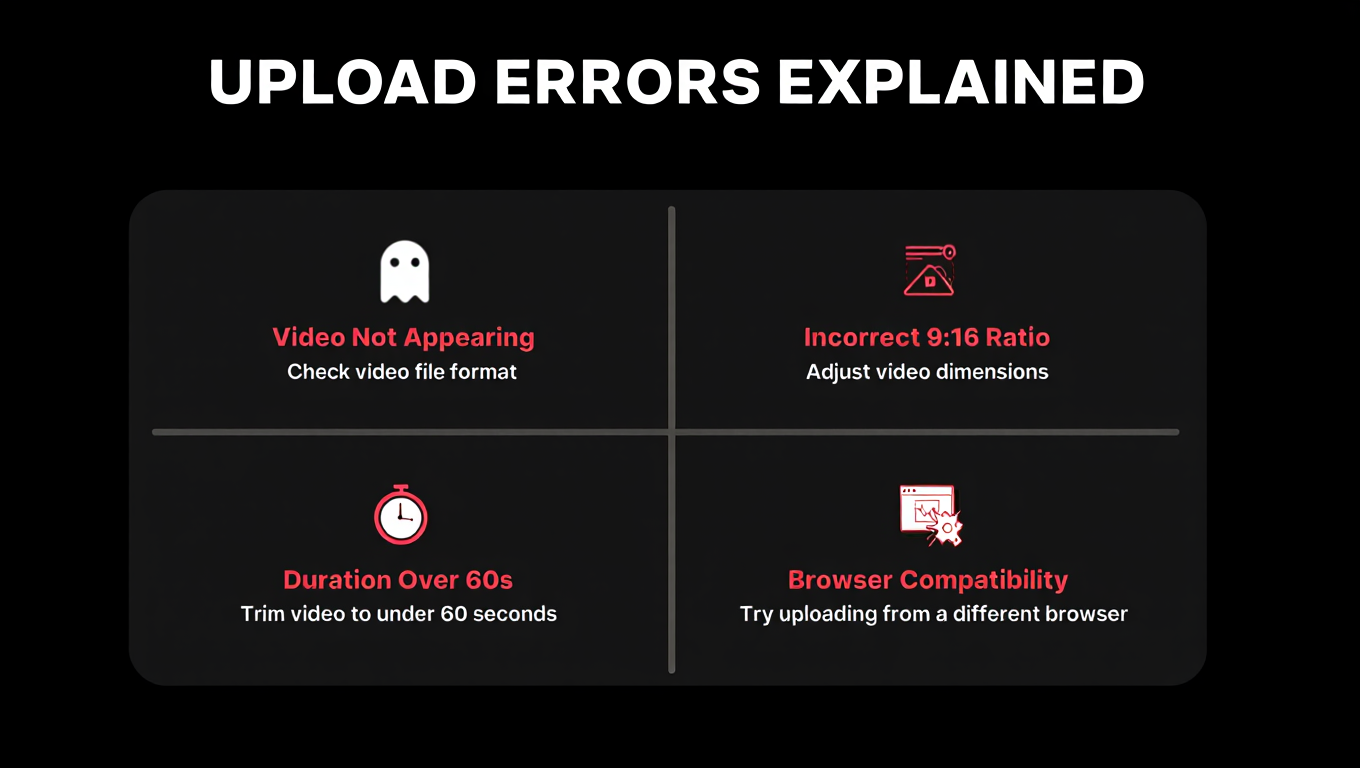
Even the best method has small hiccups. Here’s what to watch out for:
- Video not appearing in the Shorts feed
- Wrong aspect ratio or resolution
- Video longer than 60 seconds
- Browser compatibility issues
Tip: Always use Chrome, Firefox, or Edge for reliable browser YouTube Shorts upload guide experience.
Best Practices to Optimize YouTube Shorts
- Hook your viewers in the first 3 seconds
- Keep your video ≤ 60 seconds
- Use trending hashtags like #Shorts
- Consistent uploads boost discoverability
- Optimize titles and descriptions with keywords
Add context with Remote Work Rewired: Tech Transforming Our Daily Lives if your Short targets work-from-home audiences.
FAQs: Post YouTube Shorts Without Mobile App
- How do I post YouTube Shorts from a browser?Use YouTube Studio Shorts upload on desktop and select your vertical video.
- Is it possible to upload Shorts from PC?Absolutely! You can upload YouTube Shorts from computer without the mobile app.
- How long can Shorts be when uploading from PC?Maximum 60 seconds.
- Where do I upload YouTube Shorts on desktop?Log in to YouTube Studio, click Upload, and select your vertical video.
Final Thoughts
These were the easy and quick steps tp post YouTube Shorts without mobile app. The browser method for posting YouTube Shorts gives you flexibility, scheduling options, and better control. Desktop uploads are perfect for creators who manage multiple channels or want a streamlined workflow.
You Might Also Like:
- For tech safety while uploading follow: Simple Ways to Secure Your Online Accounts
- For data backup tips while working on desktop: How to Backup Data Without Cloud: Offline Options
