


Is your laptop running slow and you need fixes in 10 minutes or less? The straightforward answer to your question, “Why is my laptop running so slow?” is provided in this guide. A slow laptop can drive anyone crazy—whether it’s files that take forever to open or a sluggish boot-up process, everyone experiences these frustrations and wants to fix them quickly.
You can speed up your slow laptop with a handful of proven, quick fixes—most in under 10 minutes. Whether you want to learn how to fix a slow laptop, optimize performance, or simply figure out what’s slowing things down, you’re in the right place.
Why Is My Laptop Suddenly Running So Slow? (Quick Diagnosis)
Common Signs of a Slow Laptop
Many things might contribute to your laptop’s slow performance, including traffic congestion caused by software and hardware issues. Here are some of the main causes:
- Background Programs: Numerous programs use memory and processing resources while operating covertly. These often contribute to laptop lagging issues or slow Windows performance.
- Automatic Start-Up Programs: Some programs start when you turn on your computer, which also uses up resources.
- High Memory Usage: If you don’t have enough RAM, it can cause slowdowns, particularly when performing multiple tasks.
- Aging Hardware: An old hard drive (HDD) that’s almost full can really slow down your computer and hinder the performance of your laptop.
- Outdated Software: Using old software can make your computer run poorly and cause problems with other programs.
- Malware: Some hidden harmful software can decrease the Speed and efficiency of a laptop.
- Overheating: If your computer gets too hot, it can reduce performance, making tasks seem slow.
2-Minute Quick Diagnosis:
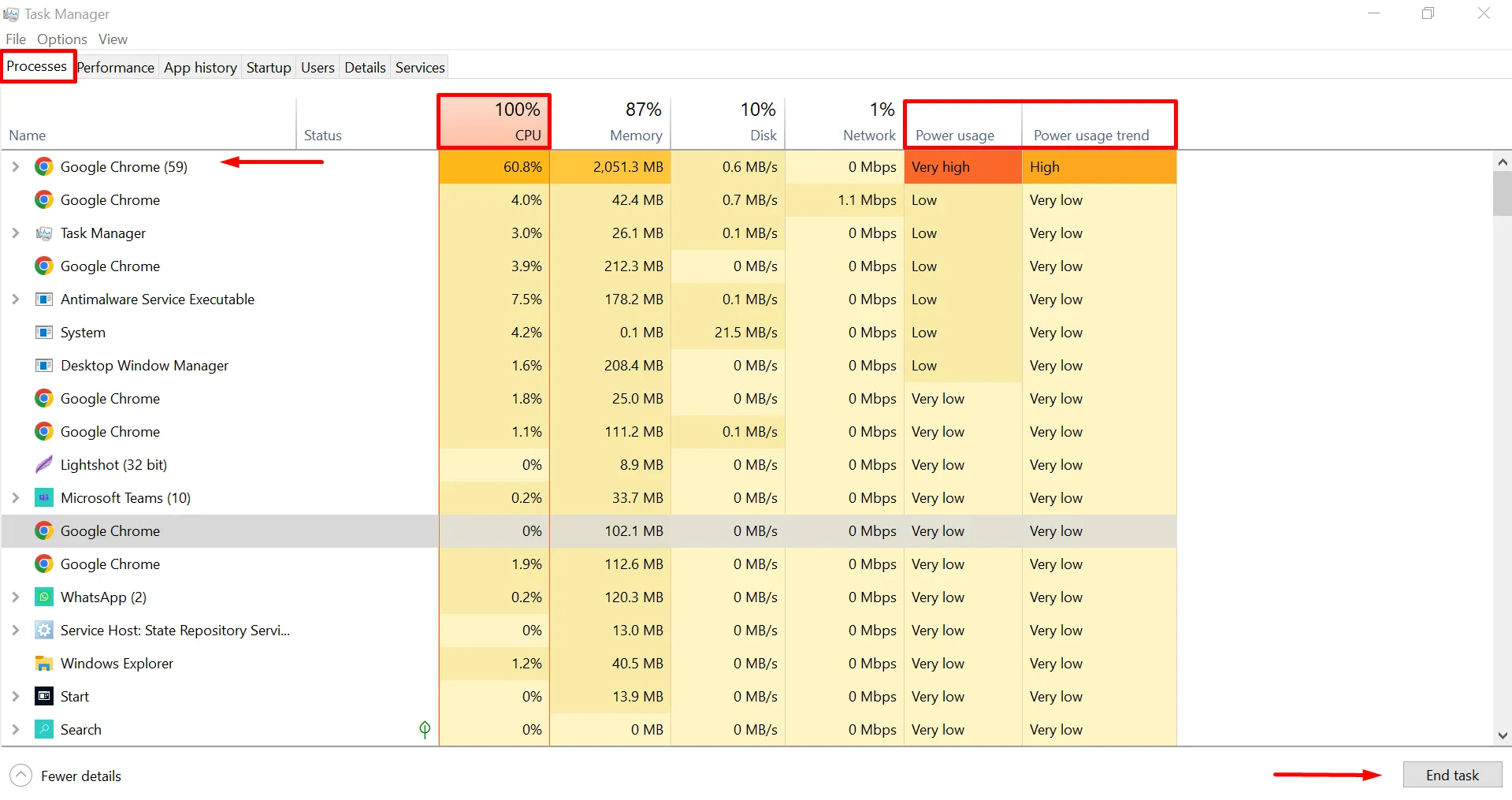
Open the Task Manager using Ctrl + Shift + Esc to check the sluggish behaviour of your laptop. Analyze the CPU, memory, and disk usage columns. If any of them are above 80-90%, that’s the problem. Find the apps that are using too many resources, like Chrome with many tabs open, and be mindful of unknown programs that may be silent saboteurs. If your RAM is full, your laptop will have trouble working well. This diagnosis is important for finding out what’s making your system slow and deciding if you need more RAM or a better SSD. This diagnosis helps you choose the right laptop running slow fixes in 10 minutes for your specific situation.
Quick Laptop Running Slow Fixes in 10 Minutes
Ready to get started? You just have to follow the quick ways to make your laptop faster and improve its performance. There will be no need for any technical expertise.
1. Close Background Programs (Task Manager Fix)
Open Task Manager and click on the “Processes” tab. Sort the programs by CPU or Memory use to find the ones using the most resources. Right-click on any programs you don’t need and choose “End Task.” Be careful not to close important system programs—only close programs you know. This easy step can quickly free up memory and make your laptop work better.
2. Disable Start-up Programs
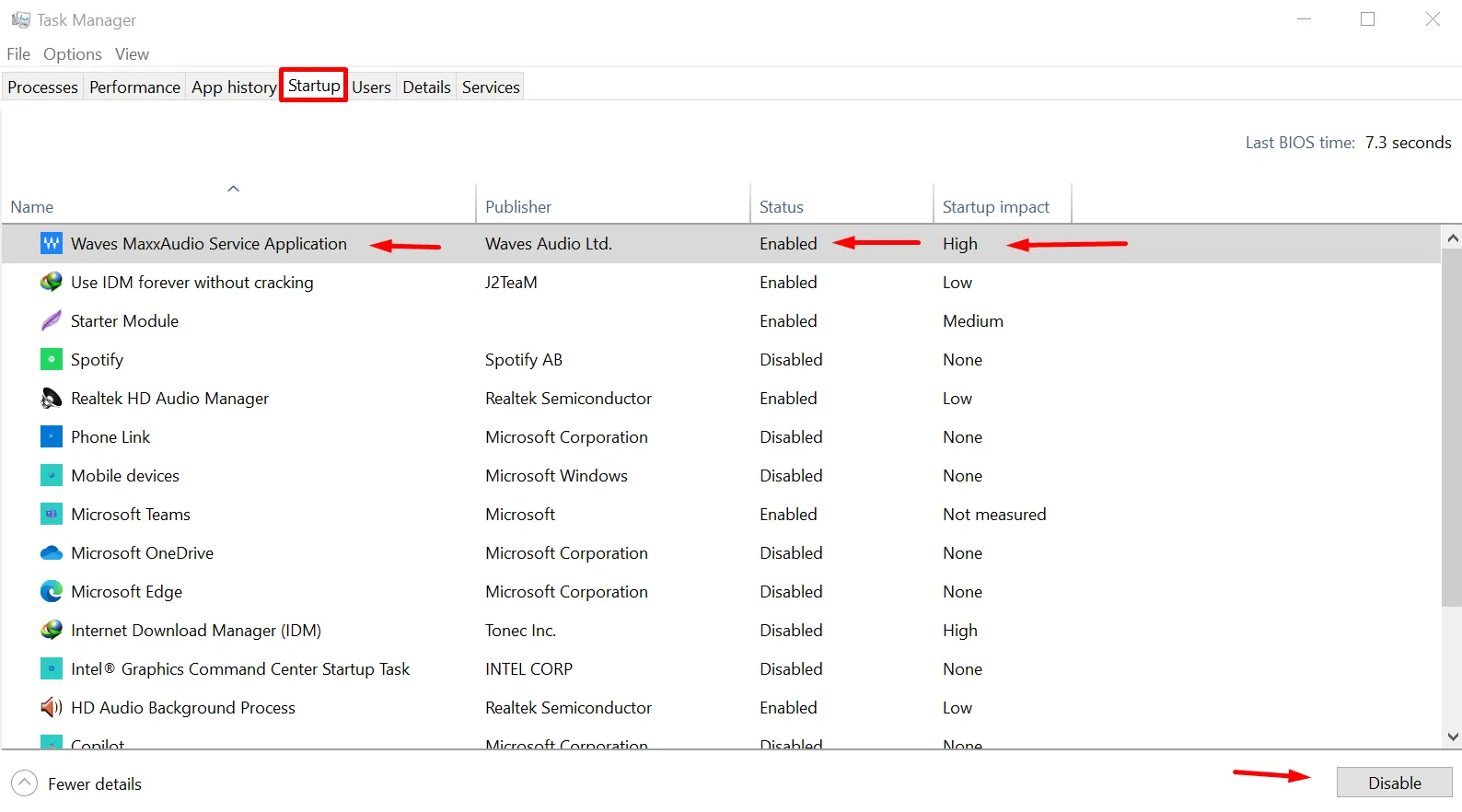
When you switch on your computer, a lot of programs start up automatically, which slows down everything. To stop these apps from starting up automatically, use Task Manager (or MSConfig on older systems). Removing starting apps is one of the best ways to increase boot time.
Select the “Startup” tab in Task Manager or type “MSConfig” into the Start menu. Turn off or disable the programs that you don’t need right when your computer starts. Keep important programs like your antivirus software, but turn off programs like Spotify or Skype. Getting rid of startup programs can make your computer start up much faster.
3. Free Up Disk Space
A disorganized hard drive is similar to a chaotic garage because it becomes hard to find anything.
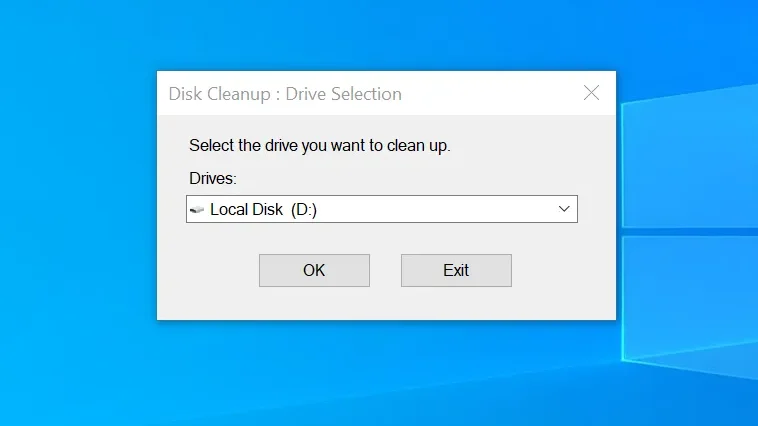
To use the Disk Cleanup tool, which comes with Windows, type it in the Start menu. You can delete temporary files, empty the recycle bin, and clear downloads from your browser. How to free up space effectively? Look for large files that you don’t use anymore, such as old movies, duplicate photos, and software installers that are using up a lot of space on your drive.
3.1 How to Delete Temporary Files Using the Run Command?
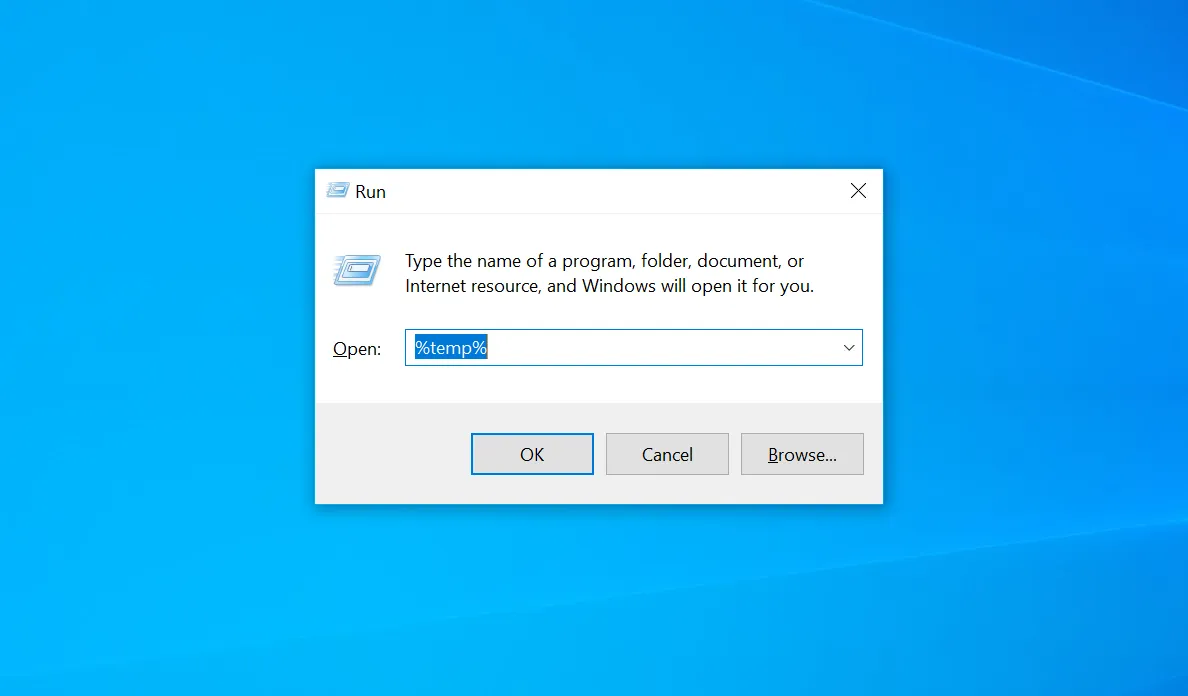
- Press the Win + R keys at the same time to open the Run box.
- Type %temp% and press Enter. A folder will appear.
- Choose all the files by pressing Ctrl + A together, then press Shift + Delete to get rid of them forever.
- Do the same thing again, but this time type temp and prefetch in the Run box.
- This can create a lot of free space and make your laptop work faster.
3.2. Run Disk Check to Fix Errors
- First, open Command Prompt with administrator rights.
- Then, type chkdsk C: /f /r and press Enter.
- The computer might ask if you want to schedule a scan the next time it restarts. Type Y and restart your computer.
4. Uninstall Bloatware & Unused Apps
Uninstall unused programs that were pre-installed or that you installed but never used.
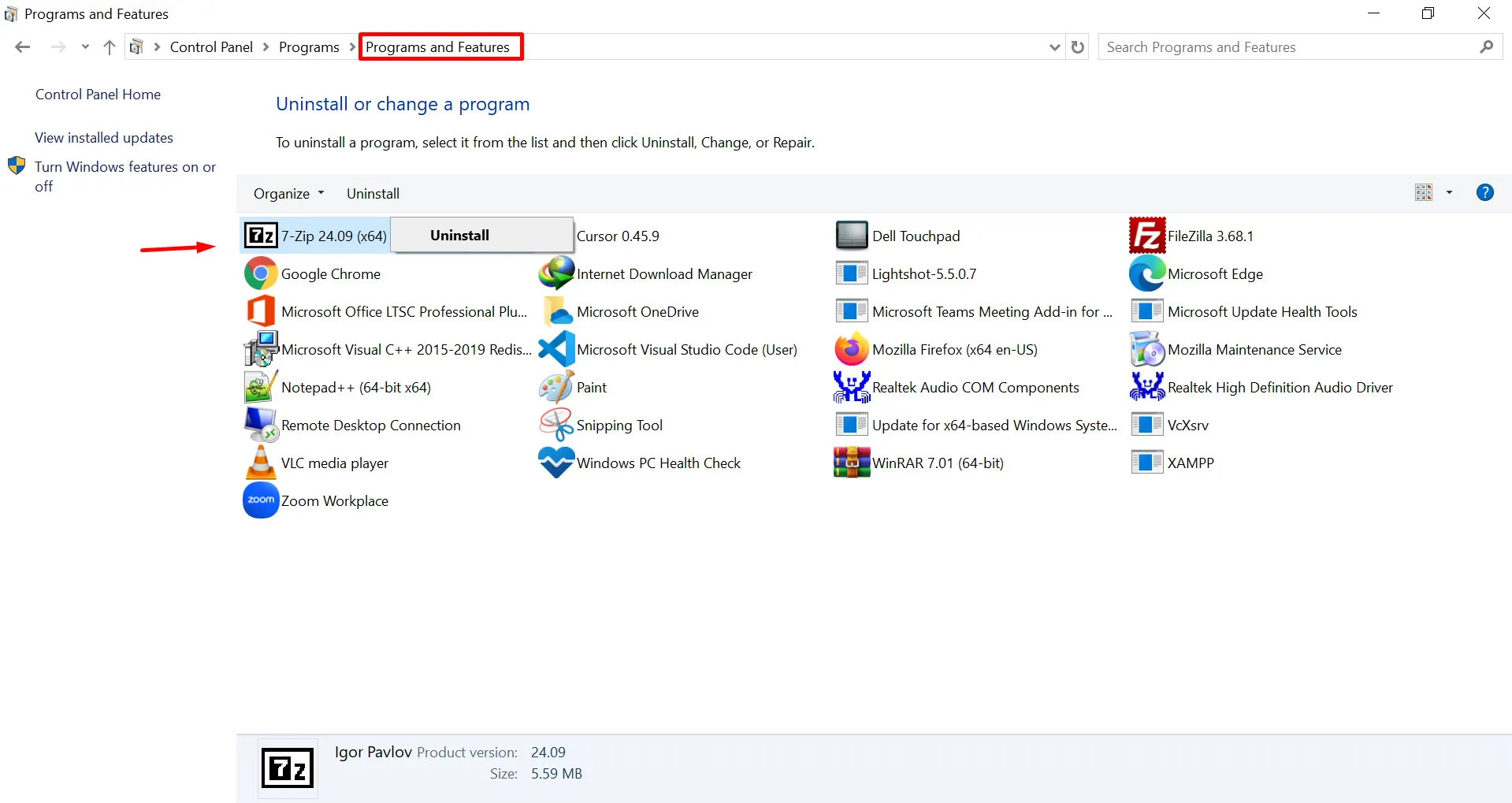
Navigate to the Control Panel and open Programs and Features. Find programs you don’t know or haven’t used in a long time. Bloatware is like cholesterol for your computer—it blocks important parts of your system. Start with big programs, because they usually use more processing power and storage space.
5. Optimize Browser Performance
Your web browser could be slowing down your laptop performance without you realizing it, especially if you keep a lot of tabs open. Regularly clear your browser cookies and cache. Turn off or disable browser extensions or add-ons that you aren’t using, because each one can slow down your browsing. However, keeping essential security extensions active is important for overall system health – learn about the best browser security add-ons that won’t slow down your laptop. Use bookmark folders and limit the number of tabs open in your browser to optimize your browser for better laptop performance.
6. Adjust Power Settings
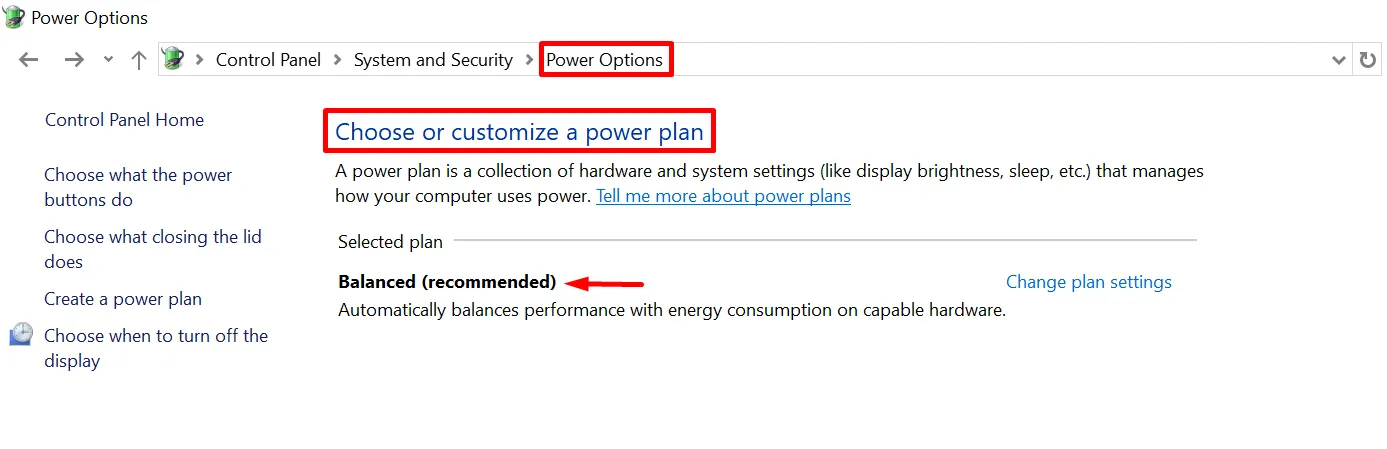
Your laptop may be using Power Saver mode to make the battery last longer, but this can slow it down. To make it run faster, change the setting to High Performance mode or Balanced mode through Control Panel > Power Options. These are excellent Laptop Optimization Tips that immediately unleash your computer’s complete capabilities.
7. Built-In Tools for a Faster Laptop
Windows comes with robust maintenance tools, but many users don’t know about them. These tools are already part of Windows and can help your computer run better without costing you anything. They work like a personal trainer for your laptop, helping it get rid of unnecessary files and improve how well it works. Using them regularly can stop small problems from becoming big ones.
- Disk Cleanup & Storage Sense:
Free up disk space on Windows 10/11 with these automated tools that operate while you rest. Storage Sense automatically removes the contents of the recycle bin, outdated Windows update files, and temporary files. Go to Settings > System > Storage to enable it. It ensures optimal disk usage and prevents storage-related slowdowns.
- Defragment and Optimize Drivers:
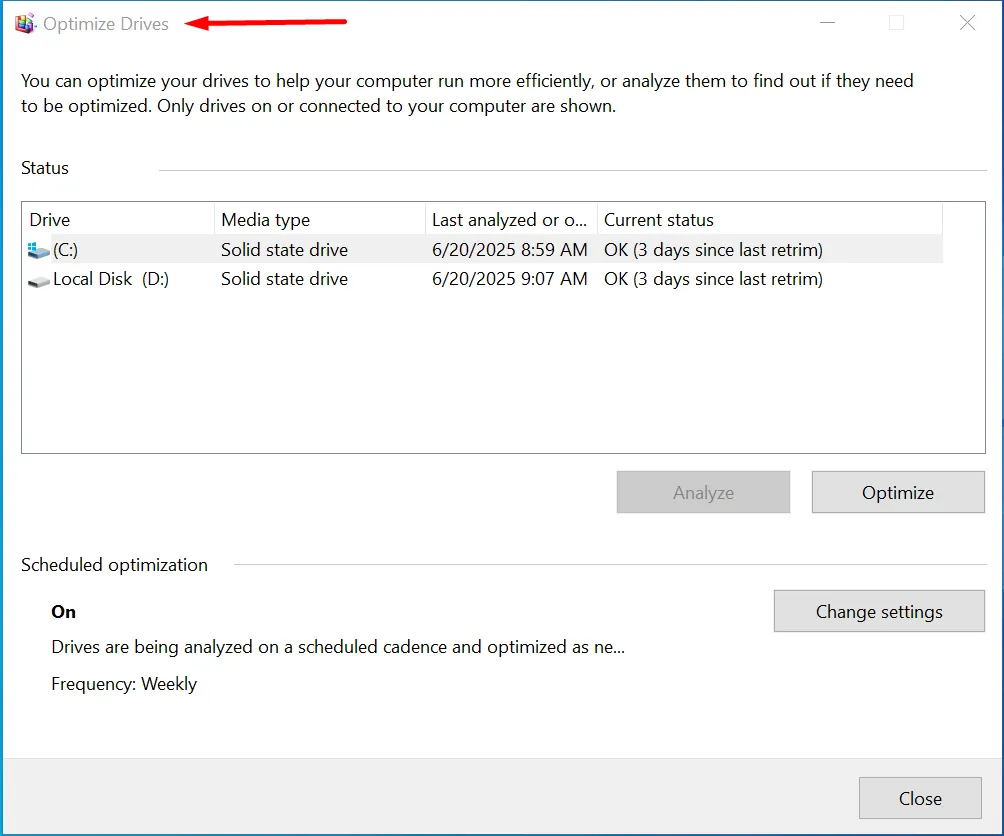
If you have an HDD, make it faster by defragging it. To do this, type “Defragment and Optimize Drives” in the Start menu, which rearranges your files to speed up access. Skip this step for SSDs; they only need to be optimized sometimes. Set up automatic defragging every month to keep your HDD running well.
- Update Windows and Drives
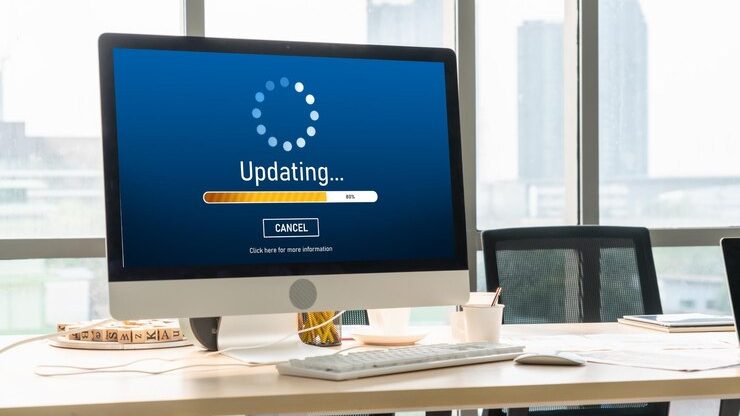
Use Windows Update to install the newest system updates and security fixes. Check Microsoft’s update history to see what improvements each update brings.” Update drivers using Device Manager by right-clicking on devices that have yellow warning triangles. Update operating system components regularly, as newer versions often include performance improvements and bug fixes that directly impact speed.
- Malware Check (Quick Antivirus Scan)
Use Windows Defender or an antivirus program to do a virus scan. Malware can seriously impair the speed of your laptop.”
Restart Your PC (The Simple Fix Everyone Forgets)
It may seem simple, but restarting your computer is a very good way to quickly fix a slow laptop. Restarting clears your RAM, stops memory from being used up without being released, installs updates that are waiting to be installed, and refreshes how your system works. Choose “Restart” instead of “Shutdown” to make sure your system completely refreshes. Get into the habit of restarting your laptop at least once a week. It’s the easiest thing you can do to keep bigger problems from happening.
Advanced Laptop Running Slow Fixes When Quick Methods Fail
When Quick Fixes Aren’t Enough?
If your laptop is very slow to boot up or still lags after basic fixes, it’s time for advanced solutions. Level Up Your Laptop’s Hardware and Consider an SSD upgrade or more RAM. Cleaning internal parts can also help if overheating is an issue.
Upgrade to SSD or Use External SSD
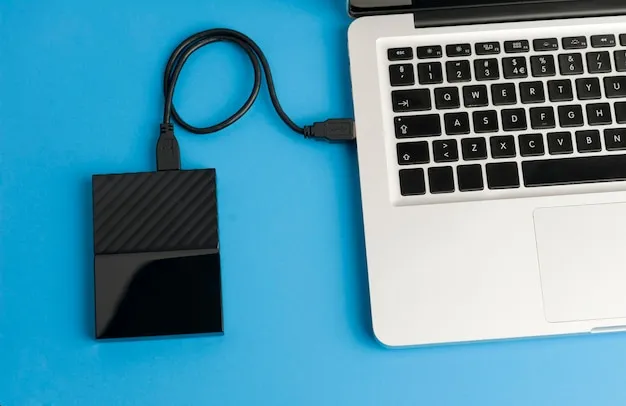
If you still have an old-style HDD, you should upgrade. Start using a solid state drive (SSD), or connect an external SSD, to make things much faster right away. Whether you use SATA or NVMe, you will see a huge improvement.
Add More RAM
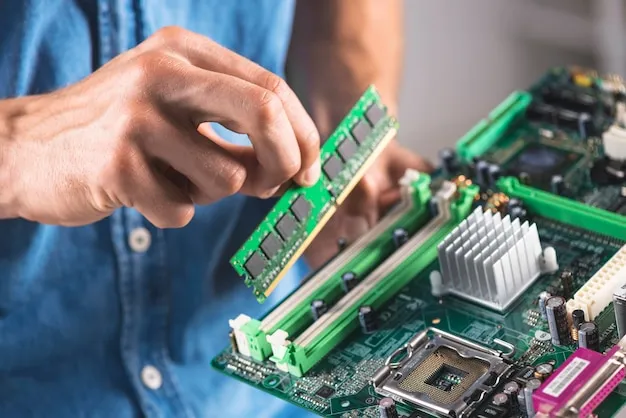
To see how much RAM you have, look in Task Manager. If you don’t have enough, getting more DDR3, DDR4, or DDR5 RAM will really improve performance. You can use tools such as the Crucial System Scanner to help you find the right RAM for your computer.
Clean Internal Hardware
Dust can stop your machine from working well. Use compressed air to clean fans and vents. A cooling pad aids in avoiding overheating, which significantly impacts performance
Reset Windows (Without Losing Data)
Is your computer still running slowly? You can try resetting Windows without deleting your files. It’s a powerful option before considering a replacement laptop.
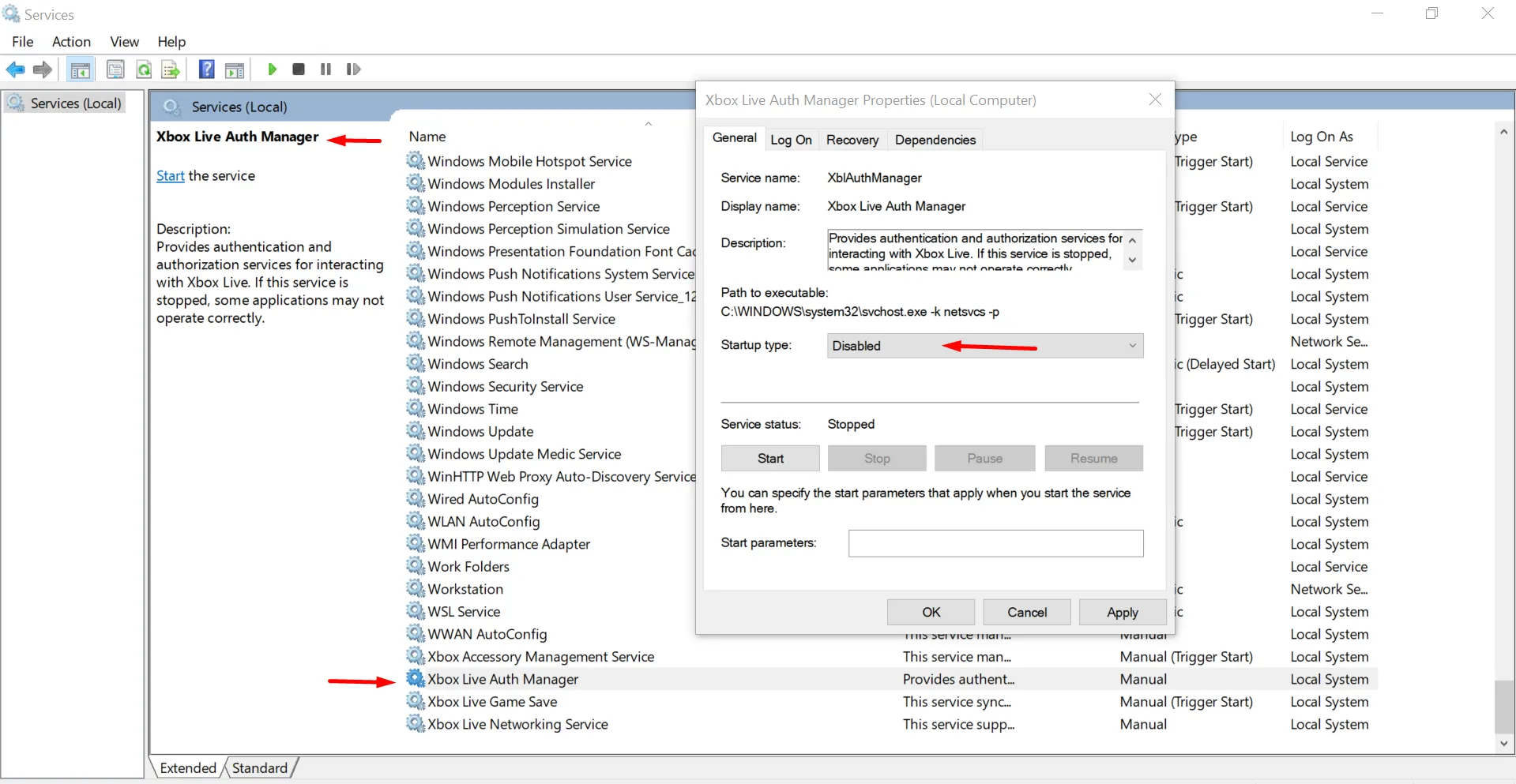
Disable Unnecessary Windows Services
- Type services.msc and press Enter after pressing Win + R.
- Search for services such as “Xbox Live Auth Manager,” “Print Spooler” (if you don’t have a printer), or “Fax,” then right-click → Properties → Startup Type → Disabled.
- Be careful not to turn off important Windows programs.
When is the Time for a New Laptop?
If your hard drive isn’t working right, your RAM is full, and your laptop is still slow, even after you put in a new upgraded SSD and cleaned it up, then it might be time to get a new laptop. A cost-benefit analysis should be performed before taking action.
Increasing the speed of a sluggish laptop doesn’t have to be rocket science. Start with the fast fixes, move to deeper maintenance, and only consider upgrades if nothing else works. These simple steps can help your laptop last longer and help you stay calm.
FAQs: Fix Your Slow Laptop in Minutes
- How do I fix slowness on my laptop?Close background programs, disable startup apps, and restart regularly.
- How to speed up laptop speed?Free up disk space, adjust power settings, and uninstall unused programs.
- How to fix a slow laptop without software?Use compressed air for dust and run Disk Cleanup for files.
- How to check RAM usage and CPU load?Press Ctrl+Shift+Esc to open Task Manager. The "Performance" tab will show you real-time graphs for your CPU usage and memory (RAM) usage.
- Is 8GB RAM enough in 2025?It’s fine for basic tasks, but 16GB is ideal.

