

Switching phones should feel exciting, not stressful. Yet many people worry about how to transfer personal data to a new phone without losing memories, contacts, or privacy.
A safe phone data transfer isn’t just about speed. It’s about control, security, and peace of mind. If you plan it well, you can switch phones without losing data and avoid common mistakes that most guides never warn you about.
Step-by-Step Overview of Phone Data Migration
Before touching cables or Wi-Fi, pause and plan. A proper phone data migration guide follows three phases:
- Backup
- Transfer
- Verification
Think of it like moving houses. You don’t throw items randomly into boxes. You label them and check nothing breaks. The same mindset applies to mobile backup and transfer workflows and backup and restore Android data.
Step 1: Preparing Your Old Phone Before Transfer
Don’t skip this step! Here’s what to do:
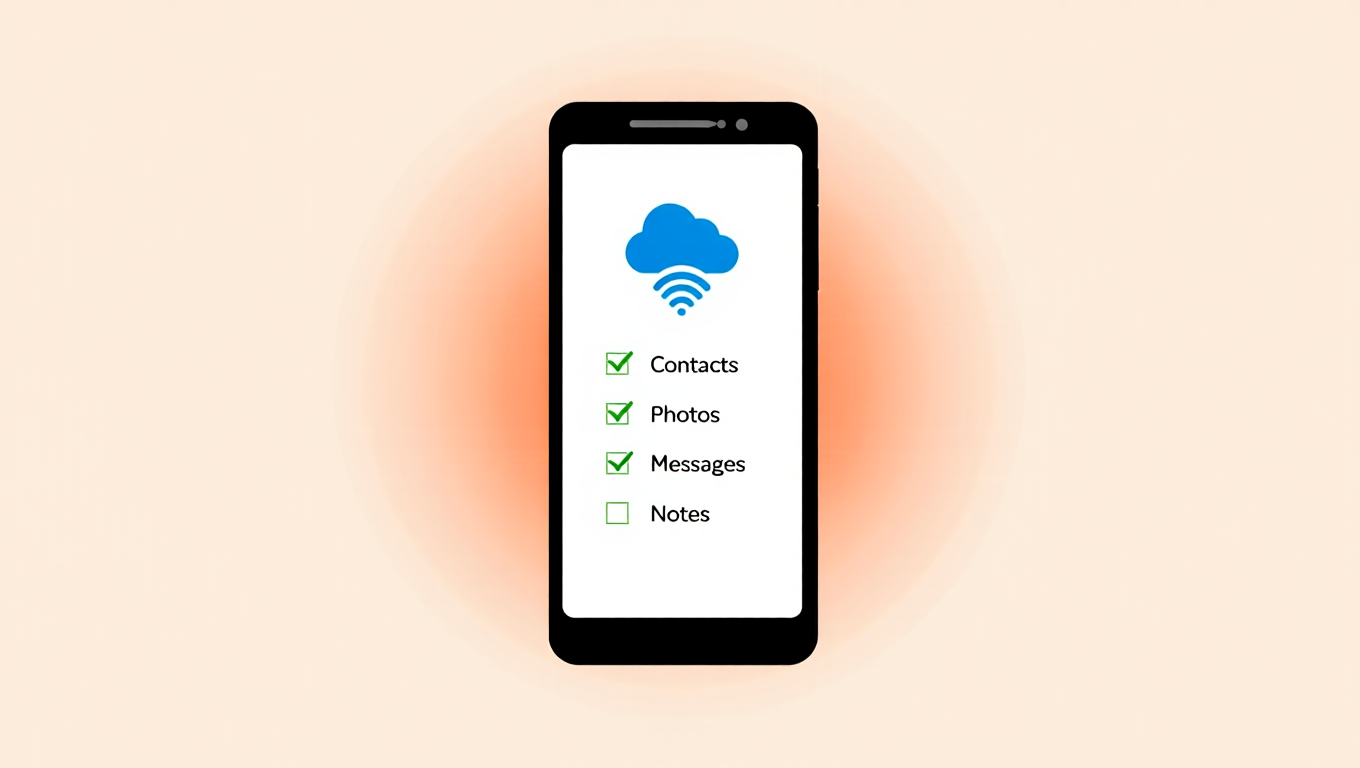
- Start by backing up old phone before transfer
- Use Google Drive backup of phone.
- Run a Google account backup and transfer.
- Confirm backup full completion.
- Do network and storage checks before transfer
- If your Wi-Fi is slow, follow these Tips to Fix Slow Wi-Fi for a smoother transfer
- Update Android to the latest version
- Fully charge both phones
Skipping these steps often breaks transfers and risks ensuring data integrity in phone swap. Besides, You can also check Offline Data Backup if you prefer not to use the cloud
Step 2: Selecting the Best Phone Data Transfer Method
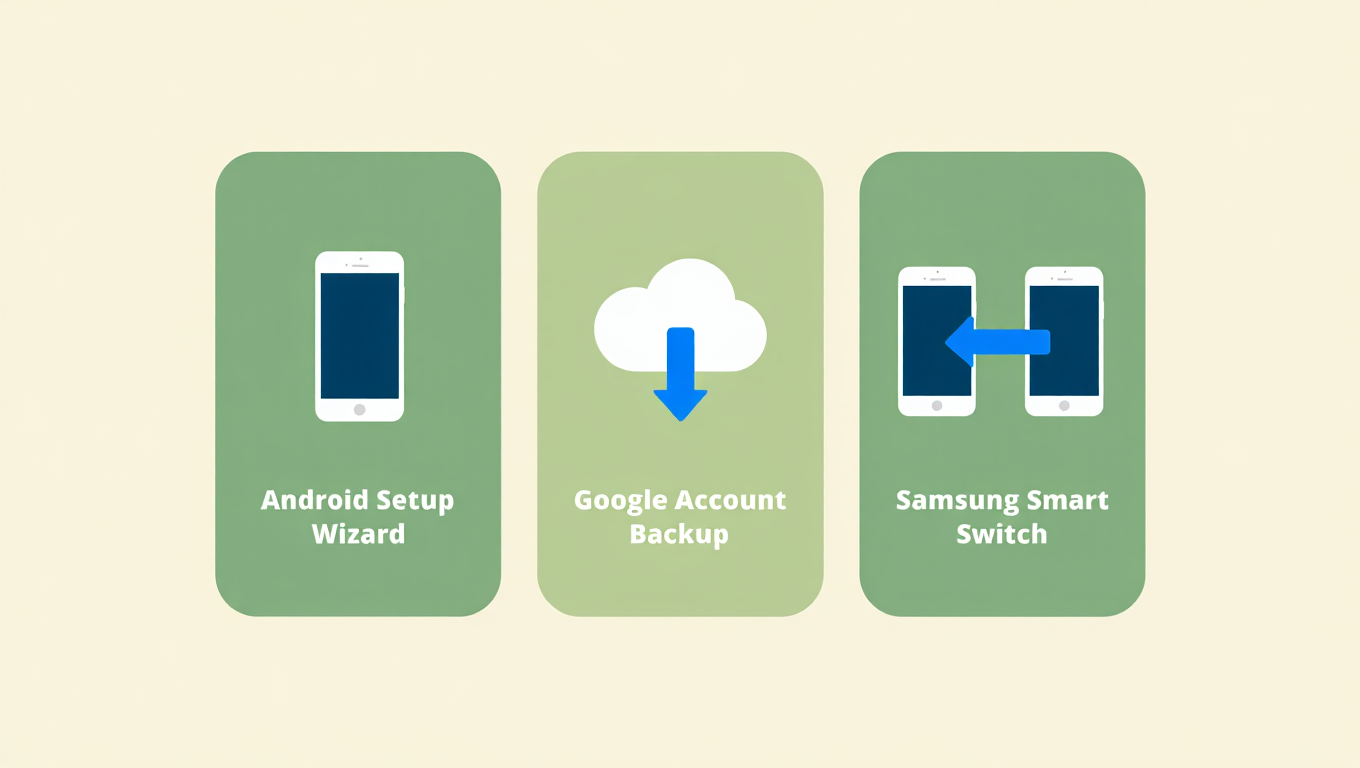
Here are 3 valid and easy methods to select the best phone data transfer for your phones.
Method 1: Android Built-In Transfer During Setup
This is one of the most reliable Android phone data transfer methods.
- Turn on your new phone
- Choose “Copy apps & data”
- Connect phones using cable or Wi-Fi
- Use Android Switch and data copy
- Select what to move
Method 2: Google Backup and Restore Method
This method is perfect if both phones aren’t available at the same time. with this method, you’ll transfer phone data without losing anything.
- On your old phone, go to Settings > Google > Backup and tap Backup now.
- On your new phone, during setup, sign in with the same Google account.
- Choose how to transfer data securely using Google backup and restore your data.
Method 3: Samsung Smart Switch (Samsung Users)
Samsung users benefit from Samsung Smart Switch data transfer and Samsung Smart Switch wireless transfer.
- Install Samsung Smart Switch on both devices.
- Connect both phones via cable or wireless (Wi-Fi).
- Select data categories that you want to move.
Step 3: Cable vs Wireless Transfer: What’s Safer and Faster?
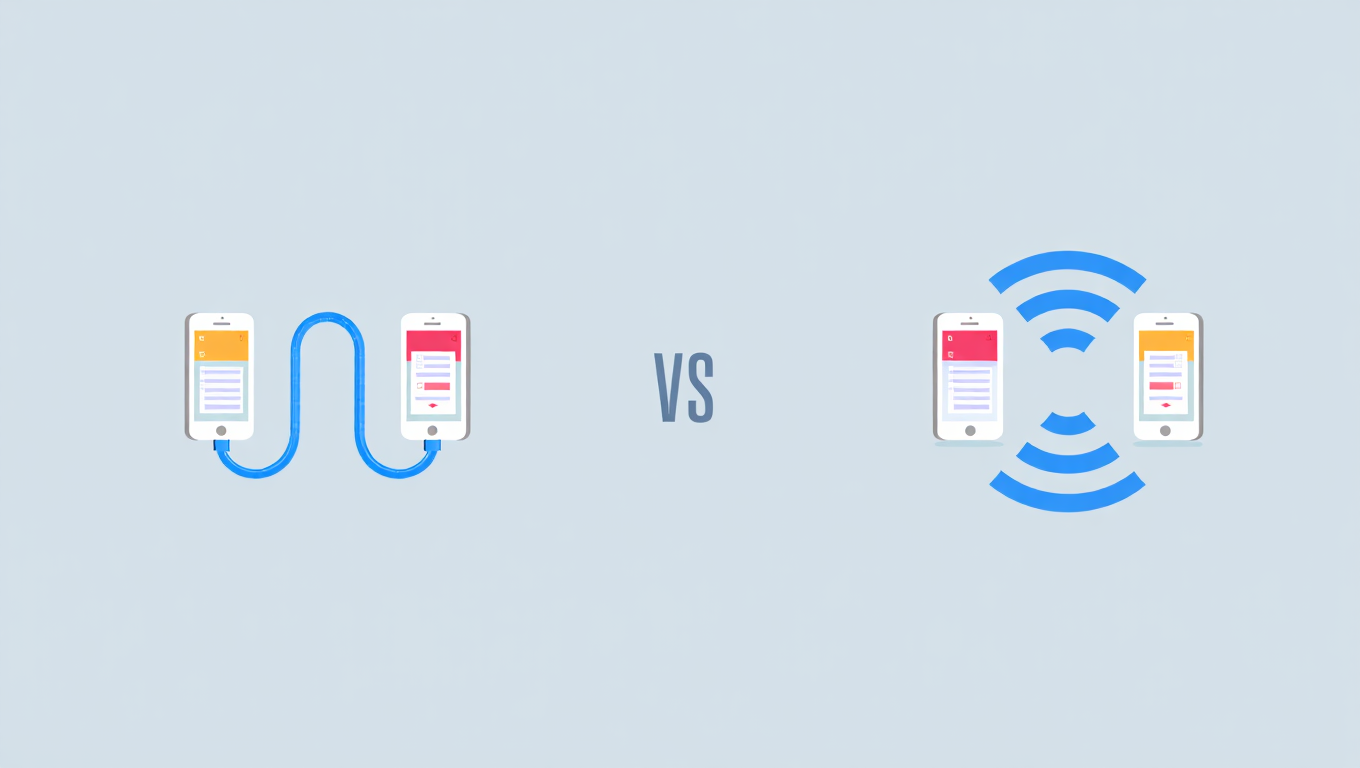
Choosing cable vs wireless transfer depends on your situation. For public places, wireless vs USB phone transfer should favor cables. Even secure wireless phone data transfer can be risky on shared Wi-Fi.
| Feature | Cable Transfer | Wireless Transfer |
|---|---|---|
| Speed | Faster | Moderate |
| Stability | Very stable | Network-dependent |
| Security | High | Depends on network |
| Convenience | Less flexible | Very convenient |
Step 4: Phone Data You Can (and Can’t) Transfer
Most tools easily handle:
- transfer contacts and photos
- syncing contacts and calendar events
- transferring photos and videos to new phone
However, what data won’t transfer automatically includes:
- Downloaded files
- Some app data
- Non-Play Store apps
Always decide how to choose what data to transfer to support preserving privacy during transfer, especially for apps with sensitive logins. Furthermore, ensure your accounts are protected; learn Simple Ways to Secure Your Online Accounts before transferring sensitive data.
Step 5: How to Transfer Apps & WhatsApp Safely
People often ask how to transfer apps safely without breaking their settings. The good news is that Android already handles most of this for you.
For apps:
- Use built-in restore features during phone setup
- Google Play helps with restoring apps on a new device
- Some apps may still require manual login after installation
For WhatsApp and messages:
- Use WhatsApp’s built-in backup
- Restore chats via Google Drive
- Recover app settings and passwords on new Android phone with a password manager
Phone Data Transfer Mistakes & Troubleshooting
The most common transfer mistakes include:
- Skipping backups
- Rushing setup
- Ignoring failed warnings
If something breaks, stop and apply troubleshooting data migration issues calmly. Reliable secure data migration tools always provide logs—check them before retrying.
Quick Reference Table: Transfer Methods
| Method | Best For | Security | Speed |
|---|---|---|---|
| Android Setup Transfer | New Android phones | High | Fast |
| Google Backup/Restore | Cloud users | High | Medium |
| Samsung Smart Switch | Samsung phones | High | Fast/Wireless |
| Cable Transfer | Large data | High | Fast |
| Wireless Transfer | Convenience | Medium | Medium |
By following these steps, you’ll master safe phone data transfer and enjoy a seamless move to your new device.
Final Thoughts: A Smooth and Secure Phone Setup
A successful transfer isn’t luck. It’s preparation. When moving personal info to a new phone, follow clear steps, choose the right method, and verify everything.
That’s the easiest way to transfer data to a new Android phone while protecting privacy. A calm, structured phone setup and data transfer always beats rushing.
FAQs: How to Transfer Personal Data Safely to a New Phone
- How long does phone data transfer take?It depends on the amount of data and the method used. Cable transfers are faster, while wireless or cloud transfers may take longer.
- Can I transfer data without Wi-Fi?Yes, using a USB cable or offline methods like Android Setup or Samsung Smart Switch. Cloud-based transfers, however, require an internet connection.
- What happens if data transfer fails?Most tools keep a backup, so your old phone remains safe. Simply troubleshoot, retry, or restore from your backup before starting again.