

Use these 10 Proven Ways to extend smartphone battery life and improve phone battery performance. Manage your phone battery and apps to reduce drain, keeping your smartphone powered and away from a charger. This will protect your battery’s health and boost your phone’s efficiency—no new device or third-party app required.
How Smartphone Batteries Work
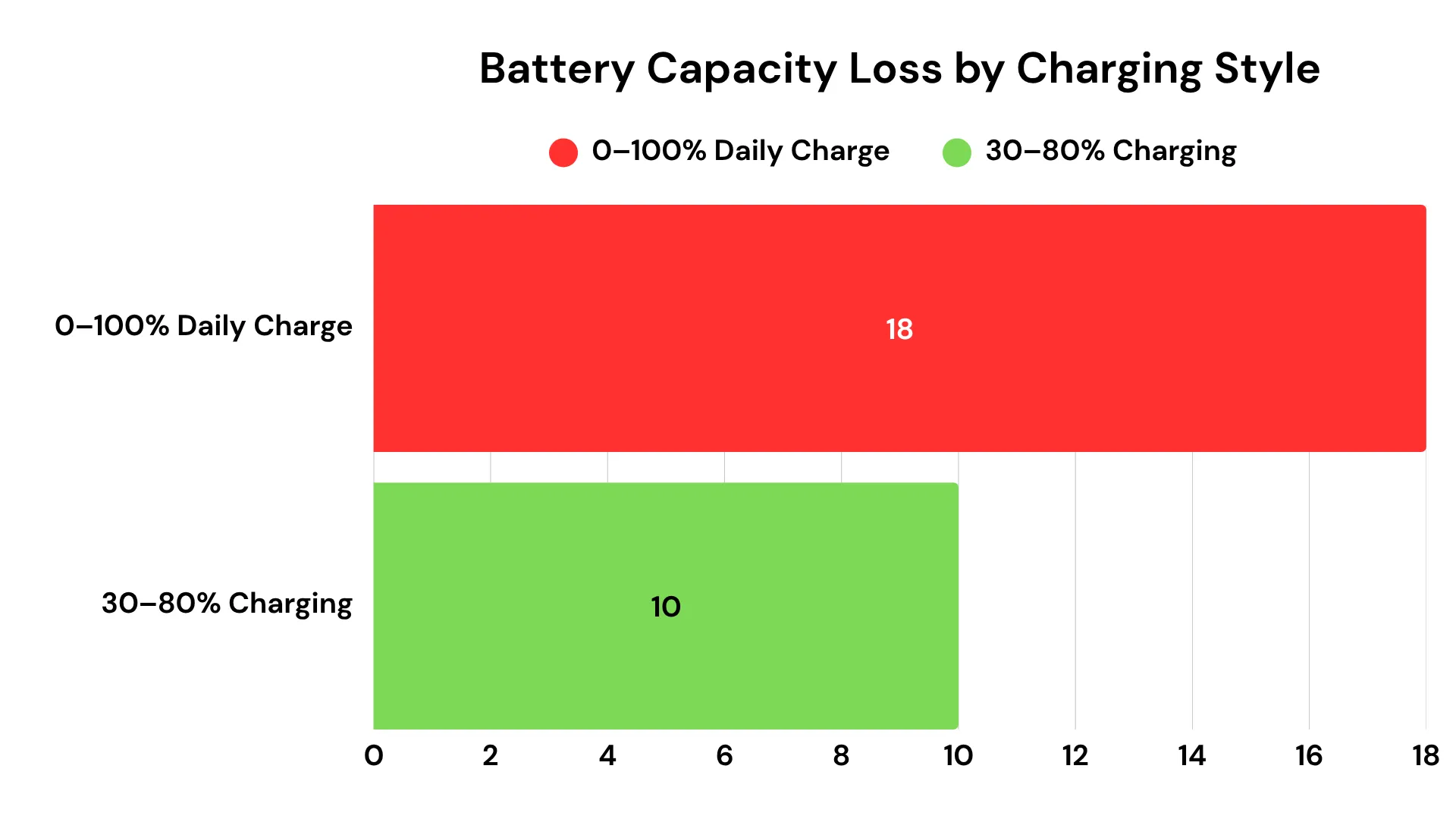
Smartphones use lithium-ion batteries that run on charge cycles—using 100% of the battery equals one cycle. Each cycle slightly reduces battery capacity, affecting both battery health and the phone’s battery lifespan.
Avoid battery myths like letting the phone die, charging overnight, or force-closing apps.
👉 Learn more from Battery University on how to prolong lithium-ion battery life.
📊 Try This: Interactive Battery Life Estimator Tool
Wondering how long your battery will really last based on your daily habits?
Use this simple tool to estimate battery life based on your phone, brightness, app usage, and more.
🔋 Battery Life Estimator
YouTube:
Instagram:
Facebook:
I – Optimize Your Display Settings
Your screen display is the biggest power consumer on your phone’s battery life. Here’s how to optimize your display settings for maximum battery savings:
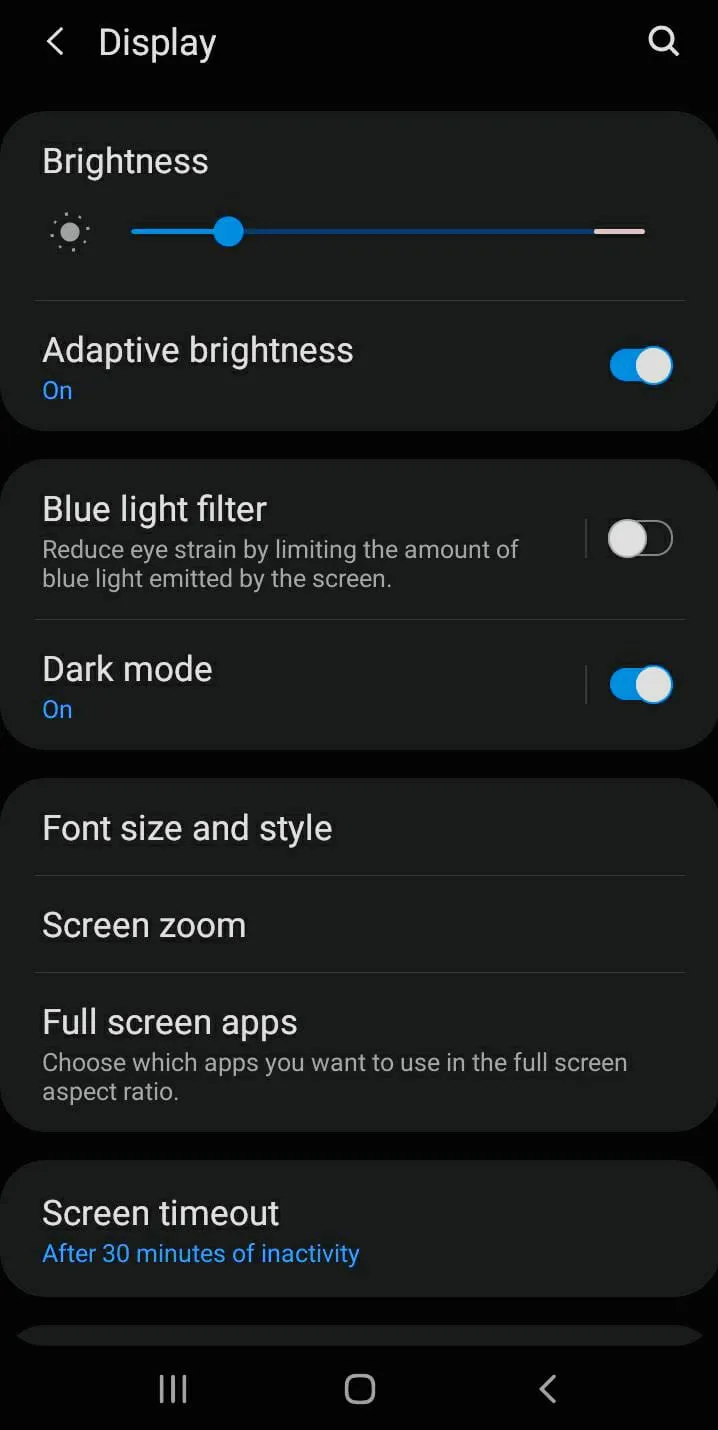
- Reduce screen brightness by 20% or more to extend battery life by 2–3 hours.
- Activate adaptive brightness to automatically adjust based on your surroundings.
- Enable dark mode on OLED/AMOLED displays to save up to 60% display power consumption.
- Set screen timeout/auto-lock to 30–60 seconds.
- Lower refresh rate to 60Hz (if available) to reduce battery drain from 90Hz/120Hz modes.
Pro Tip: Combine all display optimizations for a “battery emergency” mode when you need maximum savings.
Looking for devices that naturally offer better battery efficiency? Explore the Top 7 Budget Smartphones of 2025 with the Best Battery and Camera.
2 – Manage Background Activity
Limit apps running in the background: they use considerable energy by updating content, syncing information, and delivering notifications.
- Disable Background App Refresh for non-essential apps (e.g., games, shopping, rarely used utilities):
- Settings > General > Background App Refresh on iPhone or
- Settings > Apps > Special App Access > Background Activity on Android.
- Use battery usage analytics (iPhone: Settings > Battery; Android: Settings > Battery > Battery Usage).
- Restrict or uninstall high background battery use apps (e.g., Facebook, Instagram, Snapchat, TikTok).
- Disable push notifications for social media apps, games, and non-essential services.
- Keep background activity for only 5–10 key apps (messages, email, maps, banking); refresh others manually. for better battery optimization.
3 – The Right Way to Charge Your Phone
Follow these smarter habits to reduce stress on your battery and improve long-term performance:
- Keep the charge between 20%-80% to avoid full discharges and overnight charging.
- Enable Optimized Battery Charging (iOS) or Adaptive Charging (Android) to limit time spent at 100%.
- Use original or certified chargers and cables (e.g., MFi-certified for Apple) for safe power delivery.
- Limit fast charging—use it for emergencies only; prefer slow charging or wireless charging daily.
Need reliable chargers or emergency options? Check out the Top Budget-Friendly Power Banks for 2025.
4 – Enable Battery Saver or Power Saving Mode
- Turn on battery saver (Android) or Low Power Mode (iPhone).
- Set it to activate automatically at 20%.
- Limits background activity like downloads, mail fetch, and location services.
- However, allow essential functions like navigation.
- On iPhone: Go to Settings > Battery or use Control Center.
- On Android, features vary—Samsung offers levels; Pixel uses adaptive battery.
- Create custom profiles: work mode, sleep mode, or emergency mode.
👉 Explore Google’s support page on Battery Saver and Adaptive Battery for more.
Comparison: AI-Based Battery Optimization (2025 Models)
| Feature | Samsung Galaxy S25 Ultra (Adaptive) | Google Pixel 9 Pro (Smart Charging) | iPhone 16 Pro Max (Optimized Charging) |
|---|---|---|---|
| AI Battery Learning | Learns app use, limits background | Predicts Predicts charging times | Learns charging habits |
| Adaptive Performance | Adjusts CPU/GPU use | Balances power/performance | Manages power in heavy use |
| Battery Gain | 15–20% less drain | +2 hours battery | Slows aging, longer lifespan |
| Fast Charging Management | Reduces heat, slows at full | Slows near 100% | Limits time at 100% |
| User Customization | Power modes, profiles | Charging options | Low Power Mode |
5 – Manage Location & Connectivity Features
Your smartphone’s location and connectivity features constantly consume battery by searching for signals. Managing these wisely can significantly extend your battery life.
- Turn off Bluetooth, Wi-Fi, GPS, and location services when not needed.
- Use Airplane Mode in low-signal or poor service areas like subways, basements, or rural zones.
- Set location access to “While Using App” or “Ask Next Time”.
- Allow “Always” access for essential apps like Find My iPhone, Google Maps, or emergency services.
- Location services can use up 15–20% of battery daily if left on.
- Disable mobile hotspot when not in use to reduce high power consumption.
- Download offline maps and content while traveling to avoid constant data connections.
6 – Keep Software & Apps Updated
Keep your software and apps updated to fix bugs, improve energy efficiency, and support better battery management. Enable automatic updates during charging to avoid interruptions.
Underrated Tools or Settings Most Users Miss
- Android Developer Options:
Unlock via Settings > About Phone > tap “Build Number” 7 times. In Developer Options, set “Background process limit” to 2–3 or “No background processes” to stop battery drain from unused apps. - iOS Shortcuts & Samsung Bixby Routines:
Automate battery-saving actions—like enabling Low Power Mode at 30% or turning off Wi-Fi when you leave home—using Shortcuts (iOS) or Bixby Routines (Samsung). - Extra Tip:
Use Adaptive Battery (Android) or Analytics (iOS) to spot and limit power-hungry apps.
Try these hidden tools for extra battery savings most users miss!
7 – Avoid Extreme Temperatures
- Avoid extreme temperatures — don’t leave the phone in direct sunlight, a hot car, or a cold environment.
- Heat above 95°F (35 °C) damages battery performance and capacity.
- Avoid gaming while charging; remove thick cases to release heat.
- Don’t charge your phone under pillows or in confined spaces.
- Cold can cause temporary shutdowns, but it recovers when warmed.
Tip: Ideal temperature: 62°–72° F (16°–22° C).
8 – When to Use Slow Charging vs. Fast Charging
- Fast charging is convenient but generates more heat, which stresses the battery.
- Use slow charging (like a standard USB port or 5W plug) when not in a rush—especially overnight.
- Reserve fast charging for emergencies or when you need a quick boost.
9 – Use Lite or Web Versions of Apps
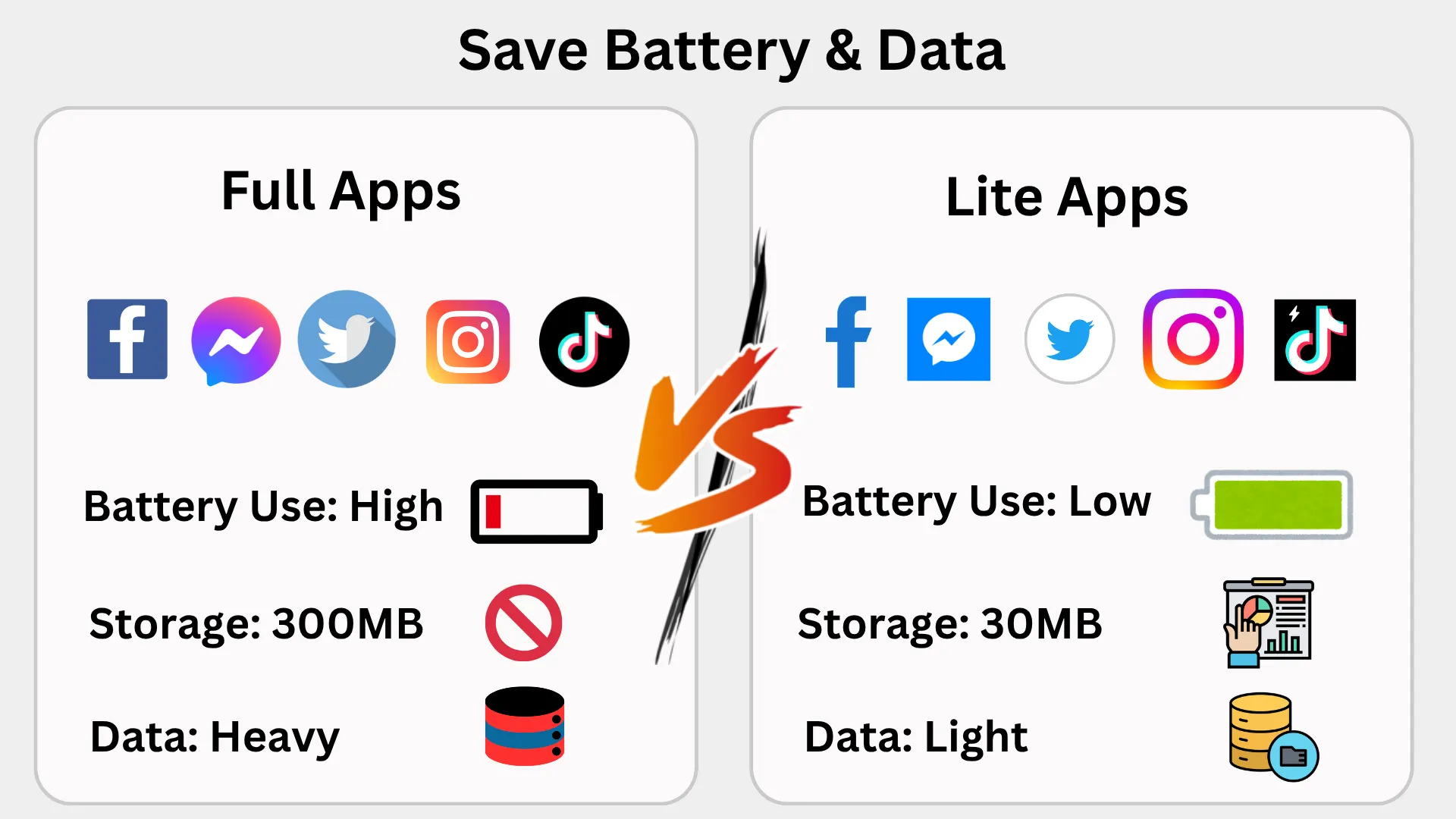
To boost smartphone battery life, use lighter app versions and web alternatives that save battery, data, and processing power.
- Use Lite versions like Facebook Lite, Messenger Lite, and Twitter Lite for less battery and data use.
- Prefer web versions over native apps when possible.
- Lite apps are great for older phones, slower networks, and modern users alike.
- Add web app shortcuts to avoid installing extra-heavy apps.
Want privacy and performance? Try these free browser add-ons to stay safe on social media in 2025.
10 – Clean Up & Uninstall Unused Apps
Here’s how a simple phone battery drain cleanup can help:
- Remove unused apps from your app drawer and home screens — if not used in 3 months.
- Disable Auto-Refreshing Widgets like weather, news, and finance.
- Disable auto-refreshing widgets or change their refresh interval to hourly or manual refresh.
For the latest on smartphones with the best battery life in 2025, see this authoritative review. Tom’s Guide: Best phone battery life in 2025
Device-Specific Optimization
- Android: Use built-in battery optimization and adaptive battery features.
- iPhone users: Use Low Power Mode and check Battery Health in settings.
- Pixel users: Take advantage of Adaptive Charging and App Standby.
- Samsung users: Try Power Saving Mode and Adaptive Battery.
- Nothing Phone, OnePlus, Pixel: Explore their unique battery-saving settings.
Looking to go even more secure with your devices? Explore these simple ways to secure your online accounts.
Actionable Checklist
- Lower brightness & enable dark mode
- Limit background activity
- Use power-saving modes
- Turn off unused connectivity
- Update apps and OS regularly
- Avoid fast charging unless needed
- Delete unused apps
- Monitor battery usage stats weekly
Making your smartphone battery last longer isn’t hard—it’s about building smart daily habits. From tweaking your display to managing charging habits, each tip helps you extend your phone battery’s lifespan. Try them out, track your battery stats, and share your favorite tip in the comments below!